 MYARDMS LOGIN
 VERIFY ARDMS CERTIFICATION
To ensure that you will know what to do when you begin your practice test, please read and follow all the instructions carefully. Scroll down to access all of the tutorial instructions.
If you have any further questions regarding the practice tests please email customercaresupport@inteleos.org or read ARDMS Practice Test FAQs.
Instruction 1: Using the Scrollbar
Some items may not entirely fit the screen. You must, in such cases, use the Scroll Bar that appears along the portion of the screen to indicate the direction you can scroll to reveal the item.

Instruction 2: Time and Progress
You can always see how much time you have remaining by viewing the time clock in the upper right-hand corner of the screen. The current item number and total number of items remaining are also shown on the screen.

Instruction 3: Navigation
The Previous, and Next buttons will be available throughout the exam.
 moves back one screen.
 moves you from screen to screen.
The navigations and functions can be selected by clicking the appropriate button with the mouse.
Instruction 4: Selecting Answers
 Using your mouse, move the cursor (arrow) over the open circle and click.
 A black dot will fill your selected answer circle, identifying it as your answer choice.
Instruction 5: How to Answer a Hotspot
Please review the video below to learn how to answer a hotspot question on your APCA examination.
Instruction 6: Items With Videos
If an item contains video content, be certain to watch the entire video because essential information may be contained at the middle or the end of the clip.
You can control the play and pause buttons for the videos.
Instruction 7: Flag for Review
You may flag items that you want to review later. Click the button in the upper right corner labeled Flag for Review to mark an item. 
You must review items during the testing time. Items may be selected for review whether you have answered them or not.
How to Flag for Review:
Use the Mouse to move the cursor (pointer) to the Flag for Review button and then click the LEFT mouse button. A flag indicator will appear when the item has been flagged for review.
If you wish to unflag the item, click the Flag for Review button again and the flag indicator will disappear. 
When you reach the last item in the examination, press the Next button and you will be taken to the Review Screen for an opportunity to review any items flagged for review or incomplete.
Instruction 8: Using the Review Screen
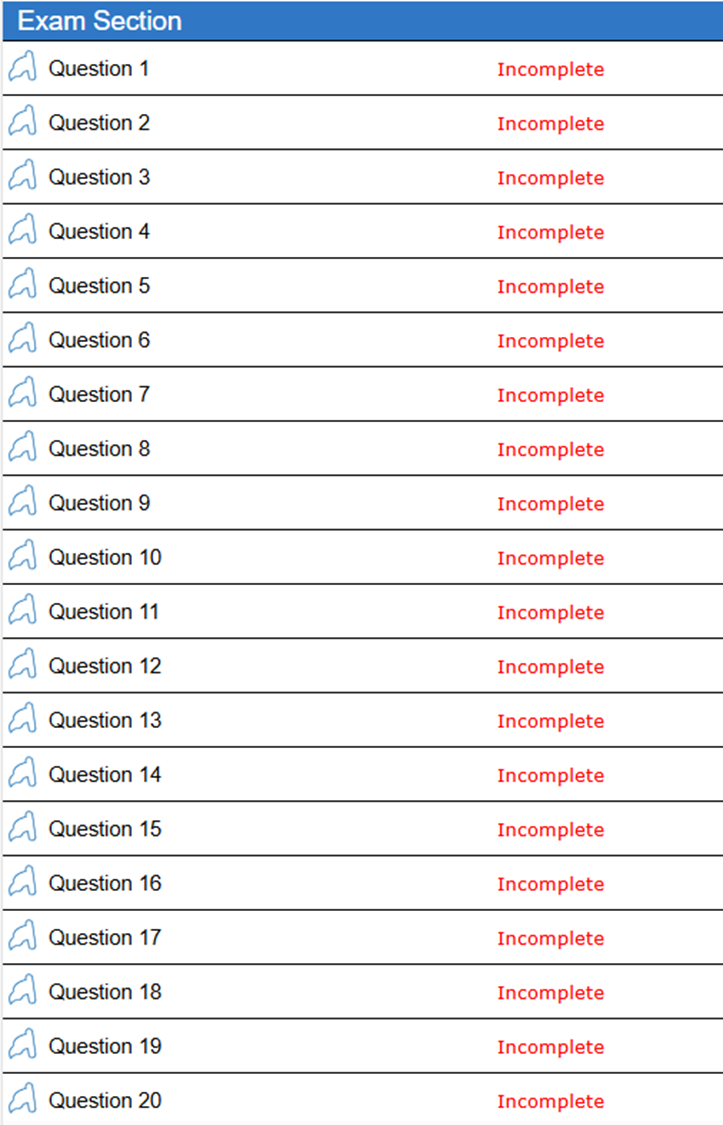
If you have checked the Flag for Review button on an Item Screen, a flag indicator will appear beside that item on the Review Screen.
You may review items, from the Review Screen, in many ways by clicking on the following status buttons:



Review Screen
Instructions
Below is a summary of your answers. Click one of the Review buttons at the bottom right of the screen to begin reviewing your answers.
– Review All: Review all of your questions and answers.
– Review Incomplete: Review all questions with skipped and/or incomplete answers.
– Review Flagged: Review all questions flagged for review.
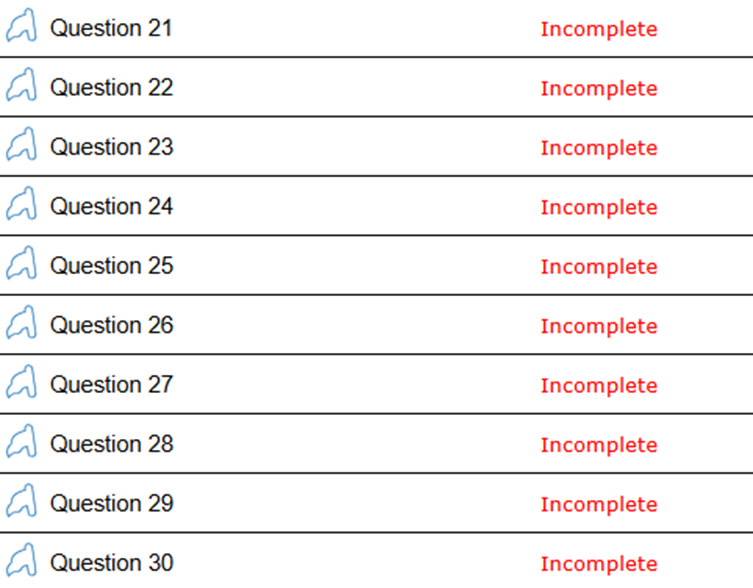
You can also click directly on a Question number to review.
Exam Questions
 |
 |